
Try hints, steps, tabs and disclosures, then open an image, compare designs and play a short clip. Every example uses Markdown and the shared Blog reading layout.
Start with a shortcut: jump to the closed explanation inside the macOS tab. The page reveals the content before taking you to the heading.
Four kinds of hint
Each hint has a distinct icon and a localized state label for screen readers, so its meaning does not depend on color alone.
Try the components in order
-
Read the hints
Compare the four icons and messages above. Ordinary Markdown still works for emphasis, links and lists.
-
Switch between alternatives
Try the Windows and macOS tabs below. Then switch the separate Quick version and Detailed version group. Each group keeps its own selection.
-
Open the extra explanation
Select “What else can go here?” You can also use Tab to focus its title, then press Enter or Space.
Offer alternative reading paths
Windows
Windows reading example
This is the first tab. Every group initially displays its first tab.
macOS
macOS reading example
This tab has its own content, including a closed explanation below.
This second group operates independently:
Quick version
Read a hint, switch platforms, then open the explanation.
Detailed version
| Try this | Look for this result |
|---|---|
| Switch this group | The platform selection above stays the same |
| Follow a hidden heading in the contents | Its tab and disclosure become visible |
| Use the keyboard | Tabs and disclosure titles have a visible focus indicator |
Keep extra information within reach
Open an image to see the details
Select this design board to enlarge it. Use the original-image link for a closer look, then press Esc to return. You can also reach the image with Tab and open it with Enter or Space.
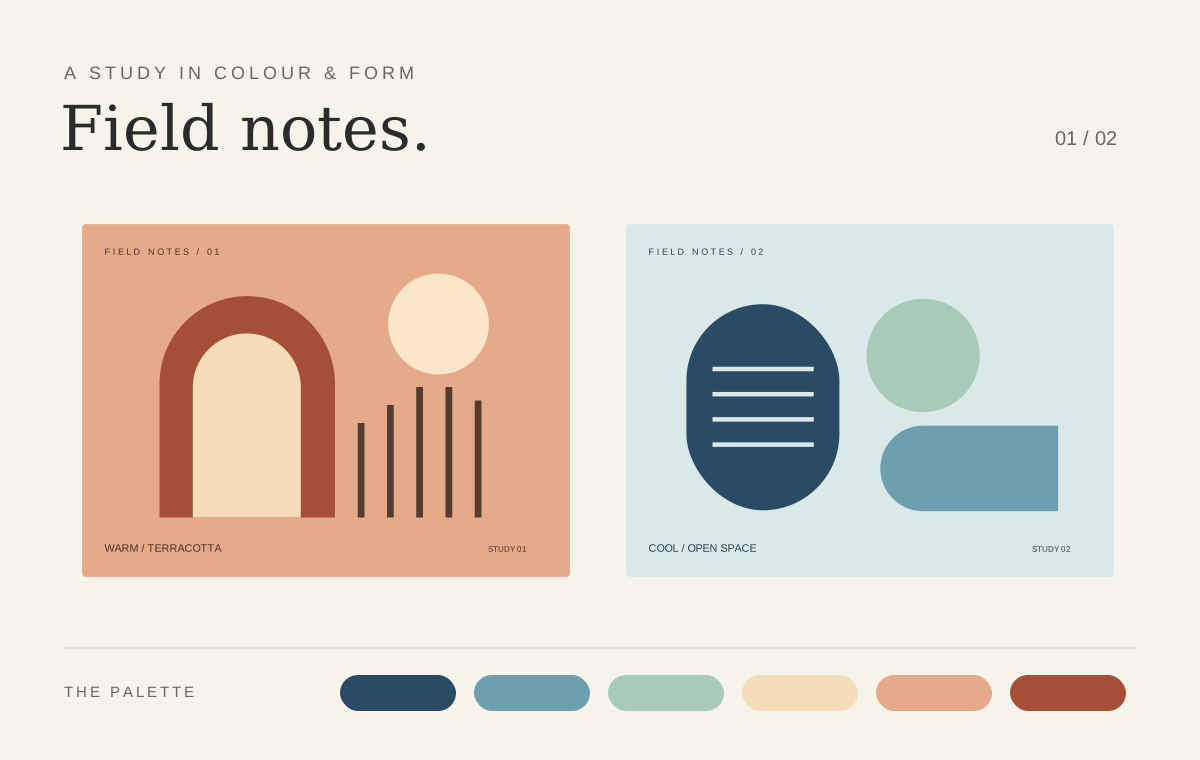
This is an ordinary Markdown image. Its alternative text describes the image and does not become a visible caption.
Add context with a caption
inline code.Compare two designs side by side
Open either image, then use Previous image, Next image or the left and right arrow keys. This gallery contains only these two designs. It will not include the tall-image gallery further down.
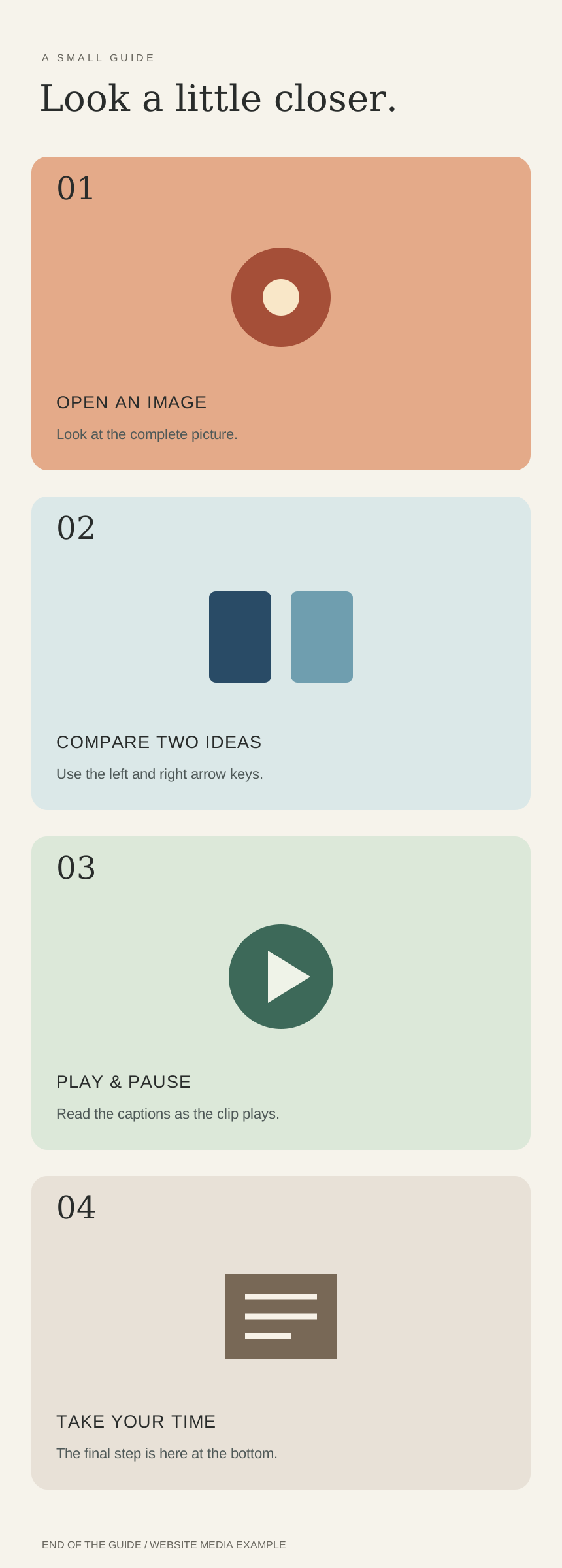
Read a tall image at your own pace
This is a separate gallery. Open the tall guide and select the zoom icon, then drag or use the mouse wheel to read it. On a phone, pinch to zoom and drag to move around. Long captions scroll independently below the image. Closing the viewer returns focus to the image you opened.
Play a real video
Start the clip, then try pausing, seeking or full screen. It has no narration. The sample captions provide reading instructions and can be selected from the player's captions menu.
Choose when to load an external player
The block below starts with a name, a description and a viewing link. It connects to YouTube only after you select Load YouTube player. You can also open the video on YouTube.
Write your own article
The knowledge base's Markdown component, image and video examples pair working examples with source you can copy. The knowledge base uses its fixed reading layout with the same interactions.
Media credits
The illustrations were made for this website. The flower clip comes from MDN's CC0 video assets under its CC0 license. The sample captions were written for this website.